

Backing up your computer and preserving your files
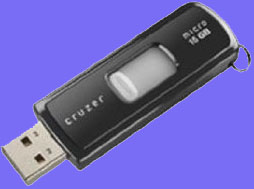
The fantastic Food Storage Made Easy blog has a great post out on how to set up a regular backup process for your computer. They recommend using my favorite backup company, Mozy - a Utah based company that was started by a friend of mine and was acquired about a year ago. Check out their post here. If you don’t yet have a backup plan setup, I highly recommend reading their post and following their advice! Like Preppers are inclined to do, I want to take their post further down the Rabbit Hole. Having a backup of all your important documents is great - but let’s look at it from a prepper perspective. If for some reason the internet becomes unavailable through, all your backups will be lost. There are lots of possibilities for this to happen: earthquake, flooding, major power loss, a nuclear strike and so on. In a TEOTWAWKI event, the internet may be gone for good or at least a long time - and there’s a good chance that the servers your backups are on will never come back online. In order to ensure the safety of your most important files in such an event I recommend regularly copying everything you care about to a USB Flash Drive. There are several reasons that I’m recommending a Flash Drive over other options. A Flash Drive is very small and extremely portable, it can’t be damaged by scratching and can survive quite a bit of abuse. Additionally, files on a USB Flash Drive can continuously be overwritten and managed. Other options like a CD, DVD, Tape, portable hard drive or even a laptop are all very susceptible to damage and data corruption. While a USB Flash Drive is not a 100% guaranteed solution, it is much more reliable than the other listed options. The number of files you can store on a USB Flash Drive are limited by a couple factors: the size of the files (which correlates to the type of the file i.e. a video file is going to be much larger than a simple document) and the size of the Flash Drive (how many gigabytes it can hold). You can store any file on a Flash Drive that you can store on your computer. This includes all your digital photos, documents, videos, genealogy files and so on. One of the other advantages of a Flash Drive (and some of the other options listed above) is that once the Flash Drive is plugged in to a computer you can access the files on it through the file system as if it were a CD or external hard drive. You can browse through and access the files just like anything else on the computer. Once your done, you unplug the Flash Drive and walk away with it. As our readers should be well aware, we’re big proponents of redundancy around here :) it is from that belief in redundancy that my next recommendation comes. I recommend that you have at least two flash drives and that you keep a full, current copy of all your important files on each one. One of the Flash Drives should be stored in your Bug Out Bag so that if you have to Bug Out, you’ve got it with you. The other should be stored at a location outside of your house - this may be in your car, at work, at a friends house - whatever. The point in keeping an off-site drive is so that if your house and everything in it are lost for some reason, you don’t lose a decades worth of photos or documents. Since you also hopefully have an internet backup you have now done a lot to insure yourself against the loss of precious files. The amount and type of files that you need to store will dictate the size of flash drive that you need to buy. I would recommend that you get at least 16 gigs but prefer 32 gigs for myself. The price per gig on Flash Drives is constantly changing. As of this writing, you can get this 16 gig Flash Drive from Amazon.com for just under 30.00 while a [32 gig one can be purchased from Amazon.com ](http://www.amazon.com/Kingston-DataTraveler-Flash-DT150-32GB/dp/B001GCUTE8/ref=pd_bbs_sr_1?ie=UTF8&s=electronics&qid=1231833468&sr=8-1)for just under 60.00. These may not be the cheapest you can find, but they are good brands at a fairly good price. So, don’t forget to pick up at least 2 of whichever size you settle on and don’t forget (and I know you will every once in a while) to regularly update the files on your drives. Do you have any thoughts or experiences regarding Flash Drives that you would like to share with us? If so, please let us know in the comments! UPDATE: If you liked this post, be sure to catch Jayce’s follow up on how to encrypt the data on your Flash Drive!